


Products

.svg)


.svg)
Craft engaging designs to captivate your audience.

Updated May 2026
Blankets are one of the highest-margin products in the print-on-demand space. But the product only converts when the design is built correctly — and that starts long before you pick a niche or choose a color palette. Get the file setup wrong, and you'll end up with unprinted edges, cut-off text, and customer complaints. Get it right, and you'll have a product that looks stunning in both mockups and real life.
Here's the complete technical and creative guide to designing blankets on GearLaunch.
GearLaunch offers two standard blanket sizes. Every dimension below matters for your art file — don't treat them as approximations.
50"×60" Blanket
60"×80" Blanket
These are the dimensions your art file must be set to before you place a single design element. Starting with the wrong canvas size is the most common — and most costly — mistake sellers make with this product.
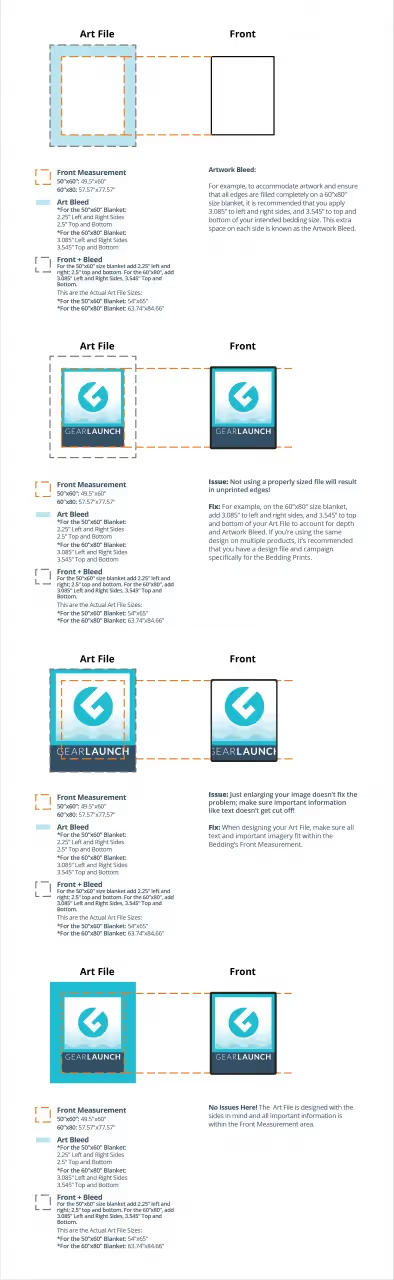
The bleed is the extra area around your design that gets trimmed after printing. Its purpose is to ensure that all edges of your finished blanket are filled completely with color or artwork — no white gaps, no unprinted strips along the sides.
For the 60"×80" blanket, this means extending your artwork 3.085" beyond the left and right edges and 3.545" beyond the top and bottom of your design. That extended space — the Artwork Bleed — is what absorbs the natural variation in the cutting and sewing process. Blankets are hand-sewn, which means they won't always be perfectly straight. The bleed gives you the margin to compensate for that.
If your design doesn't fill the bleed area, the finished product will have unprinted edges. That's not a production error — it's a file setup error. And it's entirely preventable.
Understanding what goes wrong (and why) is the fastest way to get your file setup right.
Your art file canvas is set to the full Front + Bleed dimensions — 54"×65" for the 50"×60" blanket, or 63.74"×84.66" for the 60"×80" blanket. All design elements fill the canvas edge to edge. When the blanket is trimmed and sewn, the Front Measurement area (49.5"×60" or 57.5"×77.5") shows your design cleanly, with all edges fully printed. This is the target.
You submit an art file sized to the Front Measurement only (49.5"×60" or 57.5"×77.5") without the bleed added. The file looks complete on screen, but it doesn't extend to the bleed line. Result: the finished blanket has visible unprinted edges. Fix: Always build your art file at the full Front + Bleed canvas size and extend your design to fill the entire canvas — not just the front measurement area. If you're using the same design across multiple products, create a dedicated campaign and art file specifically sized for blankets.
A common workaround is to take an undersized design and simply scale it up to fill the larger canvas. But if critical information — a name, a date, a key graphic element — sits near the edge of your original design, scaling up can push those elements outside the Front Measurement area, where they'll be trimmed off in production. Fix: When building your art file, always design with the Front Measurement boundaries in mind. Keep all text and essential imagery well within the safe zone (the Front Measurement area). Let background colors and non-critical design elements extend into the bleed — but never let important content live there.
Your art file is set to the full Front + Bleed dimensions. The design fills the entire canvas, and all text, logos, faces, and focal graphics are positioned within the Front Measurement area. Background colors and decorative elements bleed to the edge. The finished product looks exactly as intended, with no unprinted gaps and no cut-off content.
Beyond file setup, the way you design affects how the finished blanket actually looks on a bed or couch — and in your product photos.
Avoid obvious repeating patterns. Blankets are hand-sewn and don't always lie perfectly flat. A tight repeating grid or tile pattern will look distorted whenever the blanket bunches or folds. Organic artwork, flowing illustrations, and asymmetric compositions hold up far better in real-world use.
Let colors bleed to the edge intentionally. Designs where color flows naturally off the canvas edge create a seamless, finished look on the printed product. This is especially effective for gradient backgrounds, nature scenes, and painterly styles. Hard-edged designs that stop abruptly mid-canvas look unfinished.
Skip literal borders. Because blankets aren't perfectly straight, a border that looks perfectly centered in your file will appear uneven on the finished product — and an uneven border is far more noticeable than no border at all. If your design needs a framing element, use an interior decorative motif rather than an outer border. If a border is essential, keep all elements at least 4–6 inches inside the Front Measurement area.
Keep key content central. Text, names, faces, logos, and any content that gives the product meaning should sit in the center of the Front Measurement area — not near the bleed boundary. If important content is close to the edge, it risks being trimmed or hidden in a fold.
Great file setup gets your blanket printed correctly. Great niche strategy gets it sold.
Gift buyers are your biggest segment — especially in Q4. Custom blankets make emotionally resonant gifts because they combine utility with personal meaning. Seasonal designs with broad appeal (warm palettes, cozy aesthetics, nature themes) outperform designs tied to a single holiday date. For seasonal campaign timing, GearLaunch's Holiday Selling Guide is the best place to start.
Pet lovers are a perennial high-performer. Custom breed illustrations, pet name designs, and animal-themed art convert well because the audience is deeply emotionally invested. Pair blankets with your bedroom and bathroom collection to increase average order value.
Sports fans and hobby niches buy blankets that express their identity — football, hunting, fishing, gaming, and so on. These designs sell year-round because the buyer is purchasing identity, not a seasonal item.
Home decorators are an underrated segment. Blankets styled on couches and beds perform well in lifestyle photography. A design that reads as "interior decor" rather than "gift" attracts a less price-sensitive buyer who is shopping for aesthetics, not occasion.
For deeper guidance on which blanket styles convert best by niche, the GearLaunch Product Selling Guide breaks it down by category.
Before you upload your art file and launch your blanket campaign, confirm all of the following:
Browse GearLaunch's full blankets catalog to see all available styles, and check the complete standard product catalog for complementary products to bundle and cross-sell.
Ready to launch your blanket store? Browse the full GearLaunch product catalog and create your first product today.


.svg)
.svg)
.svg)